# Answering The Most Common Questions in Flutter Development #1
- **Flutter ** has definitely taken the developer community by storm. With the release of Google Flutter, developers are now able to develop cross-platform, native apps using Flutter.
- I put together a list of **FAQs** about flutter development, so take a look and share your thoughts in the comments area!
- Let's get started...

--------
## 1. How to change the launcher icon of the Flutter app?
- When you build the app, Flutter uses its own launcher icon. However, if you want to change the launcher icon, there are 2 ways: **Manual** and **Automatic**.
- - First, let's see the Manual way:
1. - Head over to [App Icon Generator](https://appicon.co/).
2. - Paste or Drop the Icon image that you want to use on this website. You can select different OS too.
3. - Now click on the **Generate** button, and it will download the zip file containing two folders **Android** and **Assets.xcassets**.
4. - For changing the icon in android head over to **android\app\src\main\res**, and replace all the mipmap folders with the downloaded one.
5. - For changing the icon in iOS head over to **ios\Runner** and paste the **Assets.xcassets** content inside it.
6. - Now stop the application if running, and build the app again.
- - Now let's see a Automatic way to change the launcher icon:
- - Add [flutter_launcher_icons](https://pub.dev/packages/flutter_launcher_icons) package in pubspec.yaml.
```
dev_dependencies:
flutter_launcher_icons: "^0.9.2"
```
- - Now paste the below code below the `dev_dependencies`.
```
flutter_icons:
android: true
ios: true
image_path: "assets/icon/icon.png"
```
- - You must specify the path to the icon you want to use for the app in `image path`. Set the 'ios' property to 'true' or 'false' to use the icon for the iOS app, and the same for the Android app.
- Now run `flutter pub get` and `flutter pub run flutter_launcher_icons:main`. And then build an app.
-------
## 2. How to rename the Flutter App, Bundle Id, and App Id
- Before you submit your app to the Google Play Store, you must give it a unique app id and name.
- For renaming the app, Bundle Id, and AppId we can use [rename](https://pub.dev/packages/rename) package.
- For that first of all we have to activate the command. For that paste the below command in your terminal.
```
pub global activate rename
```
- After activating the command, we can now rename the app by running the below command.
```
pub global run rename --appname "Counter"
```
- Instead of **Counter ** specify your own app name. You'll get this message after running this command.

- Now to rename the `BundleId` run the below command.
```
pub global run rename --bundleId com.dhruvnakum.counter
```

- Make sure your BundleId and AppId are unique. Now If you run the app name should be changed.
------
## 3. How to Fix Bottom Overflowed When Keyboard Shows
- This is a common issue when there are multiple TextFields on the screen.
- When you click on a Textfield, a Keyboard opens and flutter throws an overflow error.
-
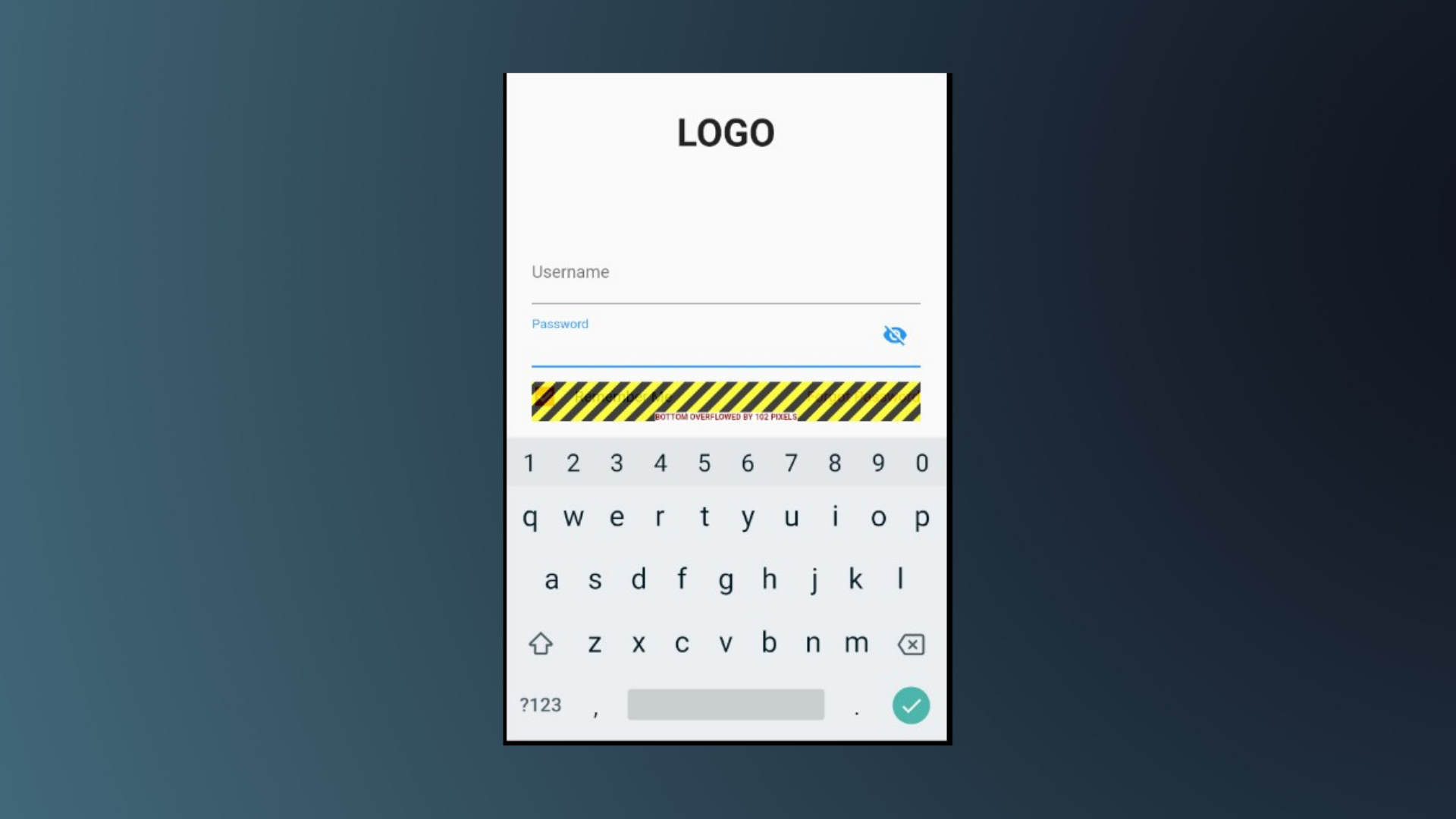
- Now to solve this issue you can simply wrap the **Column** widget inside **SingleChildScrollView**
```
SingleChildScrollView(
reverse: true
child: Column(...)
)
```
- `SingleChildScrollView` allows the column to be scrolled. Now, when you click on the Textfield, Flutter will not throw an overflow error because the Column's content has a scrollable parent. However, you will notice that the content below the selected Textfield is not visible.
- To resolve this issue, set the `reverse` property to `true`. If `false`, the content below the TextField will be hidden.
--------
## 4. How to add a Splash Screen?
- When you open your app, there is a brief period of time while the native app loads. During this time, the native app displays a white splash screen by default.
- Again, there are two options for adding a splash screen: **Manual** and by using **Package**. Using the [flutter native splash](https://pub.dev/packages/flutter native splash) package, we will see an easier way.
- This package generates native code for **iOS**, **Android**, and **Web** for customizing the native splash screen background color and splash image.
- Let's start by adding it to our app:-
```
dev_dependencies:
flutter_native_splash: ^1.3.1
```
- After `dev_dependencies` add the following code :
-
```
flutter_native_splash_screen:
# This will set a background color of 'white'
color: #ffffff
# Set the Image in the middle of the Screen
image: assets/logo.png
android: true
ios: true
```
- Now run the following command to generate the splash screen for both **android** and **ios** devices.
-
```
flutter clean && flutter pub get && flutter pub run flutter_native_splash:create
```
- When you run the app now, instead of the blank white screen, you will see your image.
- Many things can be customized, such as dark mode images, image size, and so on. You can always go to to learn more about this package.[flutter_native_spalsh](https://pub.dev/packages/flutter_native_splash).
-------
## 5. How to remove Debug Banner?
- If you see a red banner with the word 'Debug,' it means that the app you are currently using is in debug mode.
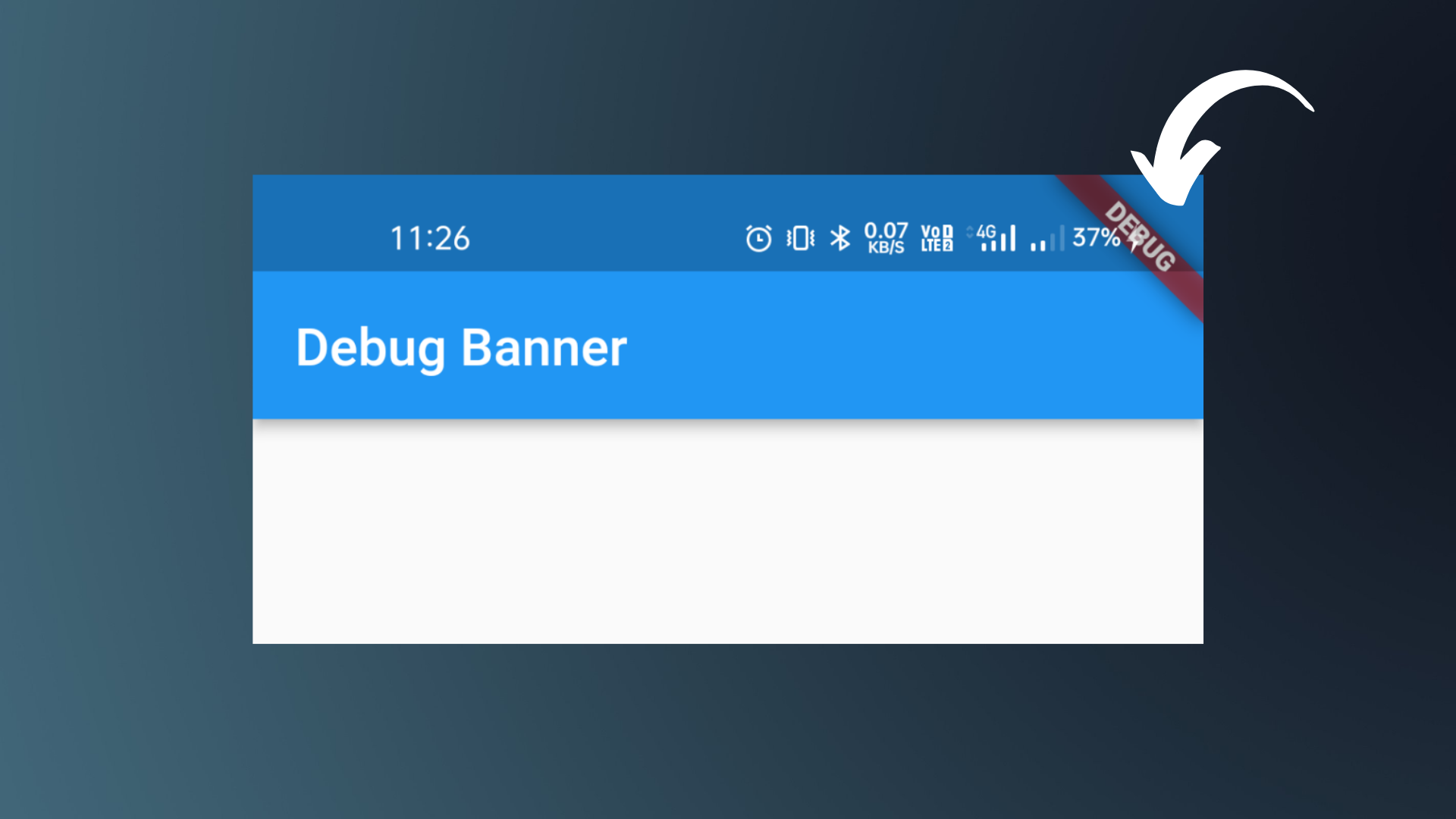
- I don't want to see this banner in development most of the time. And, if you're like me, you can get rid of it by simply setting the `false` value for MaterialApp widgets' `debugShowCheckedModeBanner` property to false.
-
```
MaterialApp(
debugShowCheckedModeBanner: false
)
```
- If you are using **CupertinoApp** instead of **MaterialApp** then also you need to do the same thing.
- > This banner will be automatically removed when you build an app for release.
-------
## Wrapping Up
- **There are numerous Flutter-related questions. I'll do my best in this series to answer the most frequently asked questions. So make sure to keep up with this series.**
- **I hope you found this article to be beneficial. If you have any questions about Flutter, please leave them in the comments. I will answer it in the next article**
- **Thank you for spending time reading this article. See you in the next article. So, until then...**
-