# Animation In Flutter: AnimatedList
- A **List ** is highly important in any application. It may be a list of people, a list of menu items, a list of to-do items, a list of games, and so on.
- And, of course, if there is a List, it can also conduct **Insertion **and **Deletion **of an item. For example, consider the Todo application, which allows users to add tasks and mark them as done.
-
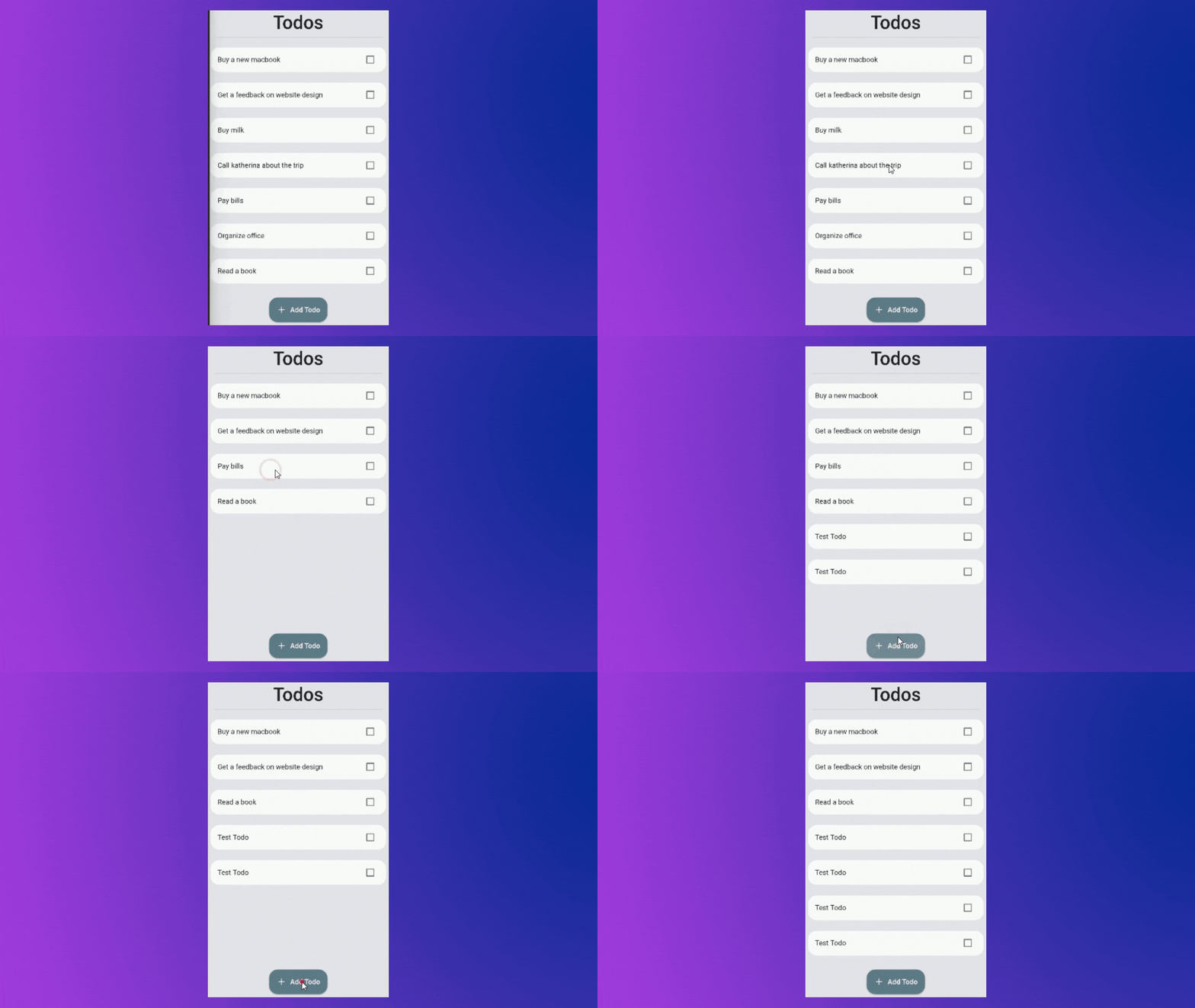
- That's OK. But can you see a flaw? The list just jumps when entering or removing a Todo. And, if the list is too long, we may not be able to identify where the item was entered or deleted.
- As you might expect, the solution is to create some type of animation that accomplishes the same purpose but with greater visual clarity.
---------
## AnimatedList
- To animate the list, Flutter offers us an incredible widget called **AnimatedList**.
- Which is, as the name implies, an animated version of a basic ListView. When an item is added or removed from the list, it can animate it.
- Let's use the same Todo app as an example to learn how to utilize it:
- You will find the starter project in the below repository:
%[https://github.com/red-star25/AnimatedListBlog/tree/main/WithoutAnimatedList]
----------
## Implementation
----------
### Replace `Listview.builder` with `AnimatedList`
- To utilize 'AnimatedList,' we must enclose the children within it. So let's get this done soon.
- In our case replace
```
Flexible(
child: ListView.builder(
itemBuilder: (context, index) =>
buildTodo(listOfTodo[index], index),
itemCount: listOfTodo.length,
),
)
```
with
```
Flexible(
child: AnimatedList(
itemBuilder: (context, index, animation) =>
buildTodo(listOfTodo[index], index, animation),
initialItemCount: listOfTodo.length,
key: key,
),
)
```
- There are three parameters that we need to pass:
-
**itemBuilder**: This is where we return the widget that we wanted to display the user. The only difference between it and `ListView.builder` is that there is an extra parameter called `animation`. It returns a double animation value.
-
**initiaItemCount**: It defines, how many items are in the list initially there in the list.
-
**key**: This is an essential factor. Because it allows us to insert/delete elements from the **AnimatedList**. There are two methods for updating the **AnimatedList**:
-
Using **of(context)** :
```AnimatedList.of(context).insertItem(index); ```
```AnimatedList.of(context).removeItem(index, (context,animation)=> ...)```
-
Using **GlobalKey** :
You can create a global key like this :
```final key = GlobalKey();```.
And then pass it to the `AnimatedList`'s **key** property.
```AnimatedList(key: key)```
-------
### Using `key` to update the List and UI.
- Now that we've created the Global key and given it to the AnimatedList, we can change the UI by updating our `insertTodo` and `removeTodo` methods.
```
void insertTodo(int nextIndex, Todo todo) {
listOfTodo.insert(nextIndex, todo);
key.currentState!.insertItem(nextIndex);
}
void removeTodo(int index) {
final item = listOfTodo.removeAt(index);
nextTodoIndex--;
key.currentState!.removeItem(
index,
(context, animation) => buildTodo(item, index, animation),
);
}
```
- You may access the `insertItem` and `removeItem` functions by accessing the AnimatedList's **currentState**. The **currentState** in this case is a `AnimatedState`.
-------
### Supply `animation` value to TodoWidget
- Once the insertion and deletion procedures have been implemented. When the user adds or deletes an item, it's time to animate the list item.
- To do this, we must provide the `animation` value to the `TodoWidget`. Then we may wrap our Widget in any AnimatedWidget we choose.
-
```
Widget buildTodo(todo, int index, Animation animation) =>
TodoItemWidget(
todo: todo,
animation: animation, // <---Here
onClicked: (value) {
setState(() {
todo.isCompleted = value;
});
removeTodo(index);
},
);
```
- Now we also have to define this property `animation` inside the TodoWidget class.
-
%[https://gist.github.com/red-star25/56ea45fc9bd4d388b476a7d667696bd8]
--------
### Final Step
- After initializing and passing the `animation` value we can simply use that inside any Animation Widget like below:
-
```
Widget build(BuildContext context) {
return FadeTransition(
opacity: widget.animation, // <-- Here
child: Padding(
padding: const EdgeInsets.all(8.0),
child: Card(
elevation: 0.0,
shape: RoundedRectangleBorder(
borderRadius: BorderRadius.circular(20),
),
child: CheckboxListTile(
onChanged: (value) => widget.onClicked(value),
value: widget.todo.isCompleted,
title: Text(
widget.todo.title,
),
),
),
),
);
}
```
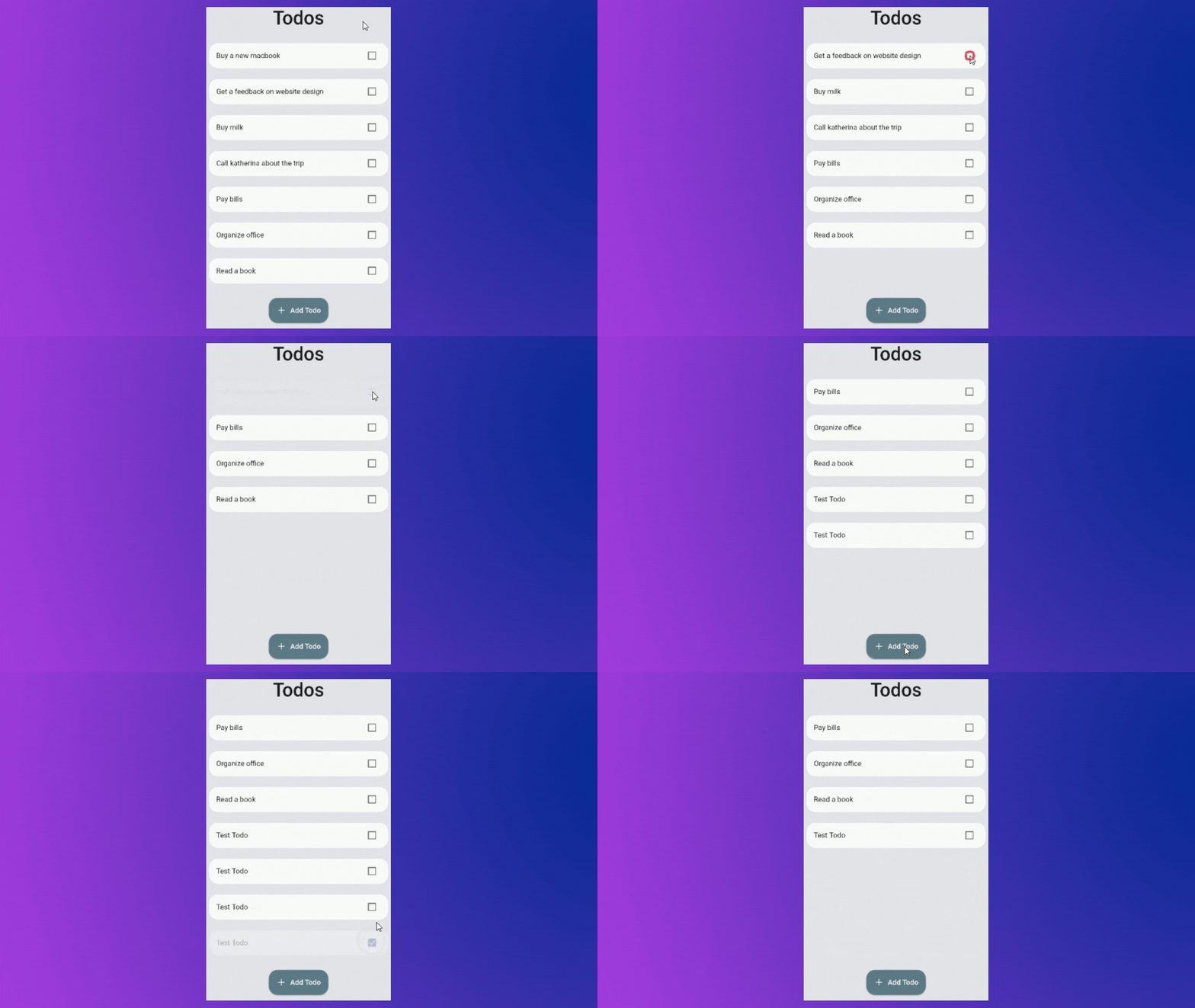
- Here, I've used `FadeTransition` which will Fades In the item when inserted and Fades Out the item when deleted.
-
- You can also use different Animation Widgets like :
- **SlideTransition**,**ScaleTransition**,**SizeTransition**,**RotationTransition**,**PositionedTransition**,**RelativePositionedTransition**,**DecoratedBoxTransition**,**AlignTransition**,**DefaultTextStyleTransition**,**FadeTransition**.
--------
## Final Code :
%[https://github.com/red-star25/AnimatedListBlog/tree/main/AnimatedListFinal]
--------
## Final Words:
- **Thank you for taking the time to read this article.** 🙏
- **If you found it useful, please share it with others.** 🤠
- **Also, if you have any suggestions, please leave them in the comments section. ✍️**
- **See you soon. Until then....
**
-